The car’s app tray isn’t your phone’s.
Tesla supplies the in-car software and app selection. Owning an Android app doesn’t put it in that tray. Which features appear also depends on the vehicle and its hardware.
Tesla touchscreen documentation ↗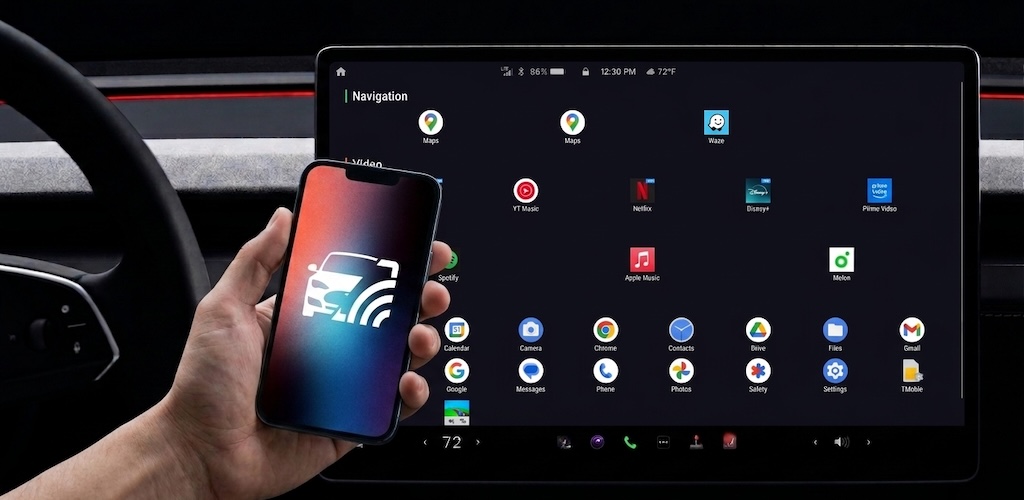
01 / SOUND FAMILIAR?
You own a Tesla and an Android phone. Your apps live on one screen. The screen you want to use is the other.
Tesla supplies the in-car software and app selection. Owning an Android app doesn’t put it in that tray. Which features appear also depends on the vehicle and its hardware.
Tesla touchscreen documentation ↗Zoom lists AMD Ryzen as a requirement for its native Tesla app, with Model 3 and Model Y support from approximately January 2022. My original 2019 Model 3 setup falls outside those requirements.
Zoom’s hardware requirements ↗Mirroring alternatives exist, but ads, paid access, and reported connection or touch issues can get between you and a straightforward experience. Those were trade-offs I wanted to remove from my own setup.
See the comparison ↓02 / THE SOLUTION
Castla lets the phone run the app and sends its display to the Tesla browser. You don’t need a native Tesla version of every app you want to use.
See a shared presentation in Zoom, open a page, or display content from a supported Android app while parked.
Tap to open. Swipe to scroll. Touch events travel back to your phone through Shizuku, so the display becomes useful.
The screen stream travels over your local connection. No cloud relay is needed for mirroring; your apps may still use the internet.
03 / How it works
Choose a representative phone app, then control it from the Tesla display. This is the exact interaction Castla is designed to make possible.
Choose what is running on the representative Pixel below. The Tesla browser mirrors the same screen in real time. Then tap or swipe on the Tesla display to see how control travels back to the phone.
Zoom screen share mirrored to Tesla. Try tapping the Tesla display.
Interactive simulation using representative screens. The Android beta performs real phone-wide capture and Tesla-browser interaction.
04 / WHY I BUILT MY EDITION
Sometimes I need to join a Zoom meeting from my phone while I’m in the car. The conversation is fine—until someone shares a presentation, a document, or the details we need to discuss. Then I’m trying to follow it on a tiny phone screen.
There’s a much larger display right in front of me, but my 2019 Model 3 didn’t have the native Zoom app. I wanted to use that display for the phone apps I already had, including shared meeting content while parked.
I explored other mirroring apps. I didn’t want ads in the experience or another mirroring subscription, and I wanted control over the issues that affected my own setup.
So I built my personal solution on the open-source Castla foundation, using AI coding tools to adapt it to my Pixel 8a. I worked through connection problems, touch and scrolling, and latency, then tested it in my Model 3 and Model Y.
Built on Castla by Suprhimp ↗04 / WHAT CHANGED FOR ME
Personal improvements developed around real issues encountered on the Pixel and in the car.
Work on restoring the configured hotspot address when Shizuku and Castla start after a reboot.
Refinements to distinguish taps from deliberate scrolling gestures.
Streaming and input refinements that improved responsiveness in personal testing.
Successful use reported on my Model 3 and Model Y with the Pixel 8a. Other combinations still need testing.
05 / WHY ANOTHER OPTION?
A personal-build perspective, not a claim that other apps fail for everyone.
I wanted an ad-free personal setup and control over issues that affected my own use.
I wanted mirroring without a daily allowance or an additional subscription.
My priority was broader phone-app mirroring, including my Zoom screen-sharing use case.
06 / ANDROID BETA
Download the Castla Android beta to test phone-to-browser mirroring. It is a personal beta for Android; the web test drive above needs no installation.
Download Castla Android Beta ↓Android may ask you to allow this browser to install the downloaded app.Open the downloaded APK, install it, then approve Android’s screen-sharing prompt when you start mirroring.
Install Shizuku from Google Play. In Developer options, turn on Wireless debugging; open Shizuku, choose Pairing, enter Android’s pairing code, then tap Start.
Join the phone’s hotspot or the same supported local network. Start mirroring, then open the address shown in Castla in the Tesla browser.
A FEW THINGS TO KNOW
Not yet. The working personal build is Android-only. The iPhone approach and release date have not been validated.
No. This independent personal adaptation of open-source Castla runs on Android and uses the Tesla browser. It is not endorsed by Tesla or Google.
Compatibility depends on the Android version, Tesla browser, and individual app. Some apps restrict screen capture or virtual displays.
You may need to restart Shizuku and then start Castla again. The personal build works to restore the configured hotspot address at that point; it is not an automatic Android system setting.
Volunteer in your Community
Lorem ipsum dolor sit amet, consectetur adipisicing elit. Autem dolore, alias, numquam enim ab voluptate id quam